Payment Processing & Withdrawals
Traffic Exchange Script supports multiple payment gateways for membership purchases, credit deposits, and member withdrawals. This article covers configuration, webhook setup, and withdrawal management.
Supported Gateways
| Gateway | Use Case |
|---|---|
| PayPal | Subscriptions and one-time deposits |
| Stripe | Subscriptions and one-time deposits |
| JVZoo | License/membership purchases from JVZoo marketplace |
| WarriorPlus | License/membership purchases from WarriorPlus marketplace |
| ClickBank | License/membership purchases from ClickBank marketplace |
| Explodely | One-time purchases |
| Internal Balance | Member deposits to site balance, used for purchases |
| Commission Balance | Use earned commissions to pay for upgrades |
Configuring Gateways
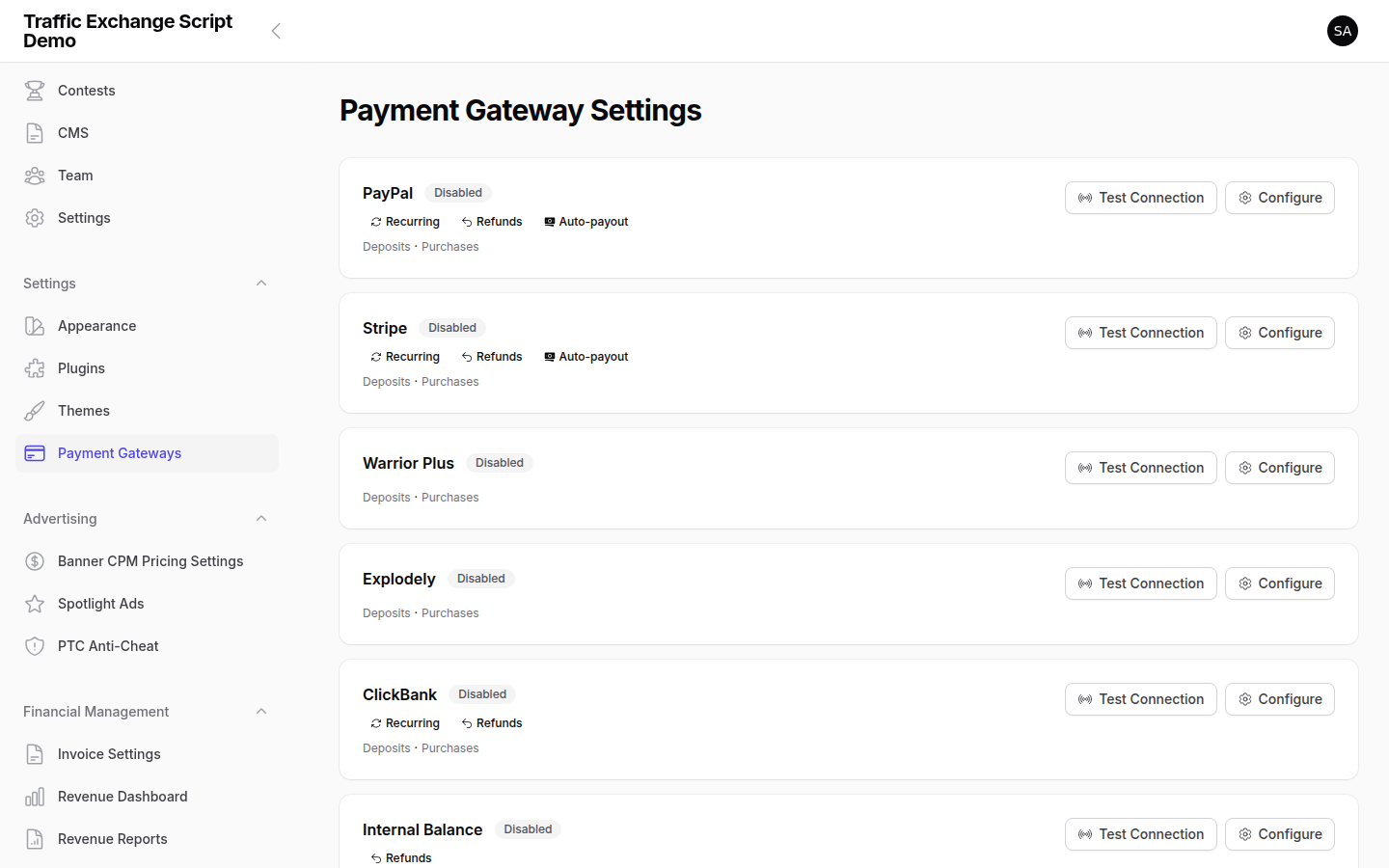
Navigate to Settings → Payment Gateways in the admin panel. Toggle each gateway on or off and enter its credentials.
All credential fields map to .env variables. You can also configure them directly in .env and restart the config cache.
PayPal
Prerequisites: A PayPal Developer account at developer.paypal.com with a live (or sandbox) app created.
PAYPAL_CLIENT_ID=your-client-id
PAYPAL_CLIENT_SECRET=your-client-secret
PAYPAL_SANDBOX=false          # true for testing, false for live
PAYPAL_WEBHOOK_ID=your-webhook-id
Webhook URL: https://yourdomain.com/webhooks/paypal
To get the webhook ID:
1. Log in to developer.paypal.com
2. Go to your app → Webhooks
3. Add the webhook URL above and select all payment event types
4. Copy the Webhook ID into PAYPAL_WEBHOOK_ID
Stripe
Prerequisites: A Stripe account at stripe.com.
STRIPE_KEY=pk_live_...         # Publishable key
STRIPE_SECRET=sk_live_...      # Secret key
STRIPE_WEBHOOK_SECRET=whsec_...
Webhook URL: https://yourdomain.com/webhooks/stripe
To set up the webhook in Stripe:
1. Go to Stripe Dashboard → Developers → Webhooks
2. Add endpoint: https://yourdomain.com/webhooks/stripe
3. Select events: checkout.session.completed, invoice.payment_succeeded, invoice.payment_failed, customer.subscription.deleted
4. Copy the signing secret into STRIPE_WEBHOOK_SECRET
JVZoo
JVZOO_SECRET_KEY=your-secret-key
JVZOO_API_KEY=your-api-key
IPN URL (set in your JVZoo product settings): https://yourdomain.com/webhooks/jvzoo
WarriorPlus
WARRIORPLUS_SECRET_KEY=your-secret-key
WARRIORPLUS_API_KEY=your-api-key
IPN URL: https://yourdomain.com/webhooks/warriorplus
ClickBank
CLICKBANK_ACCOUNT_NICKNAME=your-nickname
CLICKBANK_SECRET_KEY=your-secret-key
CLICKBANK_DEV_KEY=your-dev-key
IPN URL: https://yourdomain.com/webhooks/clickbank
Explodely
EXPLODELY_API_KEY=your-api-key
EXPLODELY_WEBHOOK_SECRET=your-webhook-secret
EXPLODELY_STORE_ID=your-store-id
Webhook URL: https://yourdomain.com/webhooks/explodely
Internal Balance
The Internal Balance gateway allows members to deposit funds to their account and use that balance for purchases.
INTERNAL_BALANCE_MIN_BALANCE=0.00
No external API credentials needed — this is entirely internal.
Commission Balance
Allows members to spend earned commissions on upgrades. Enable or disable it in Settings → Payment Gateways.
Webhook Requirements
Webhooks must be reachable via HTTPS from the internet. Common issues:
- Firewall blocking inbound requests — Ensure your server accepts HTTPS connections on port 443 from the gateway’s IP ranges
- Non-HTTPS URL — All gateway webhook URLs must be
https://— payment providers will not send events to HTTP endpoints - Incorrect URL — Copy the exact webhook URL format listed above, including the
/webhooks/{gateway}path
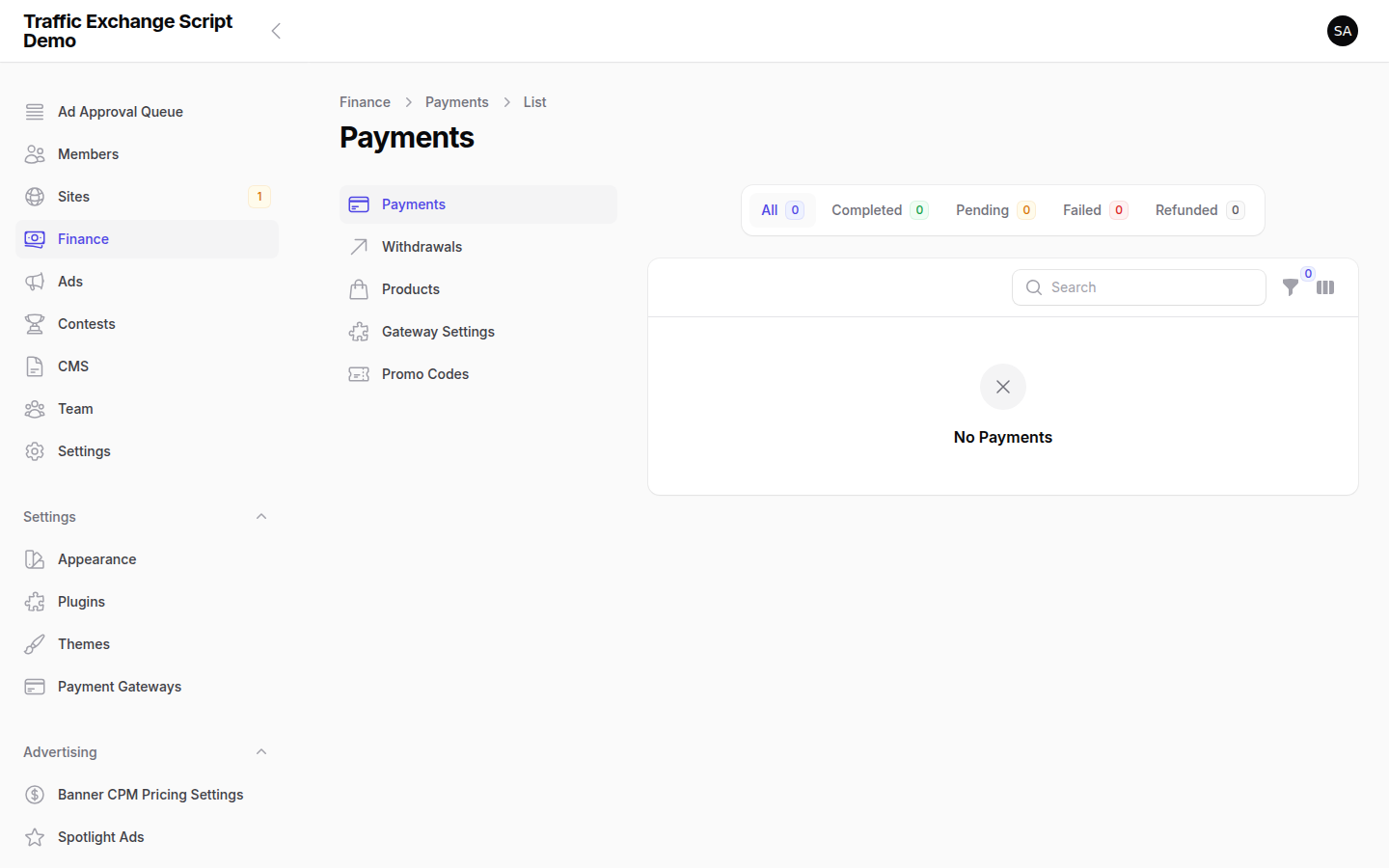
If webhooks are not arriving, check Finance → Transaction Log in the admin panel and your storage/logs/laravel.log for errors.
Withdrawal Management
Member Withdrawal Flow
- Member requests a withdrawal (must meet
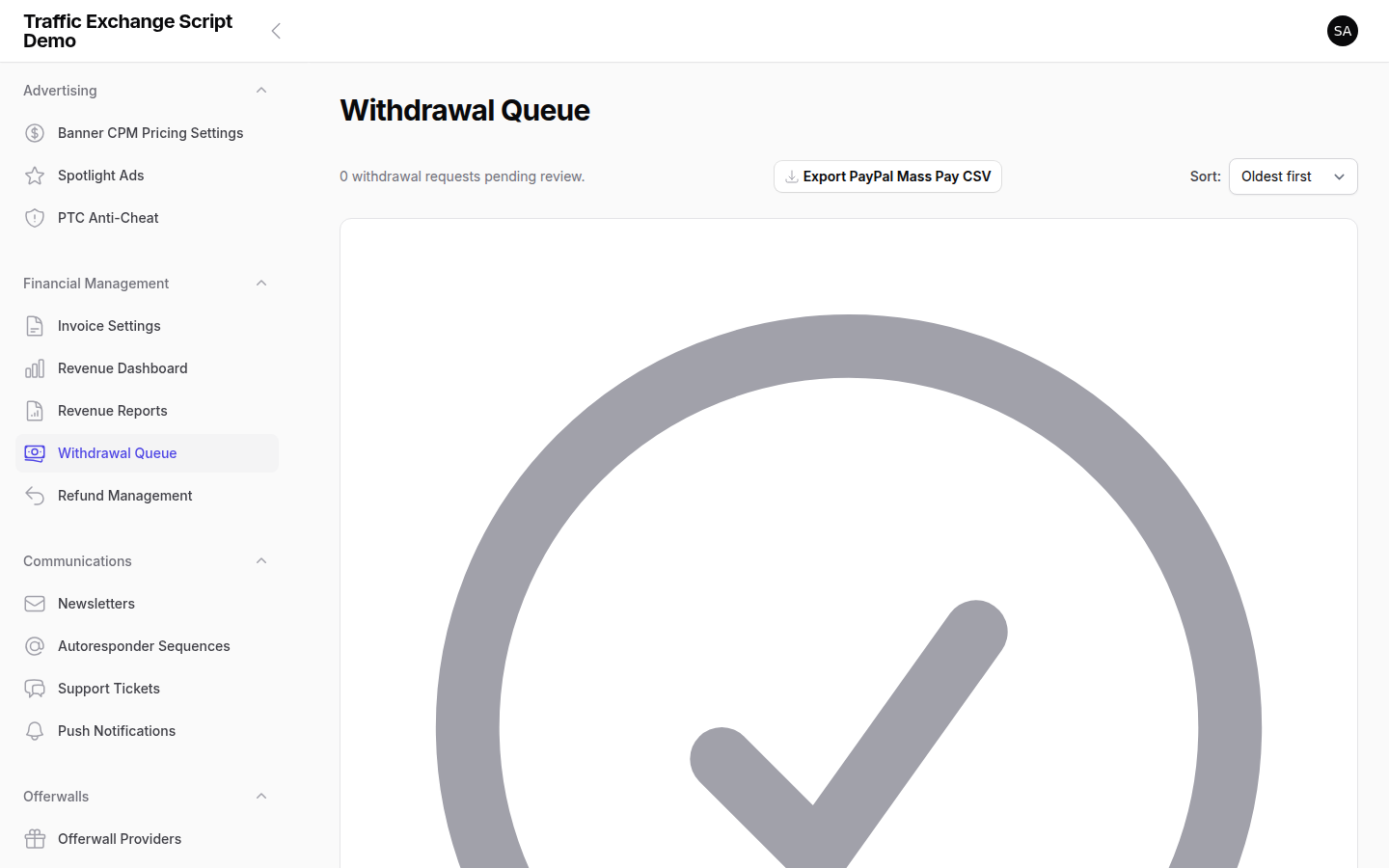
TE_MIN_WITHDRAWALthreshold, default $5.00) - Withdrawal request appears in Finance → Withdrawals → Queue
- You review and approve or reject the request
- If approved, you process the payment manually (or via the mass payout generator)
- Mark the withdrawal as paid
Minimum Withdrawal
Set the minimum withdrawal amount in .env:
TE_MIN_WITHDRAWAL=5.00
Or update it via Settings → Withdrawals.
Auto Payouts
The te:process-auto-payouts command runs hourly and can automatically approve and process withdrawal requests if you enable auto-payouts in settings. This is useful for low-risk, low-value withdrawals.
Mass Payouts
For bulk processing, use Finance → Mass Payouts. This generates a payout file you can upload to PayPal Mass Pay or another batch processor.
Transaction Log
Navigate to Finance → Transactions to view all payment events, including: – Membership purchases and renewals – Credit deposits – Withdrawal requests and payments – Commission transfers
Filter by date, member, gateway, or transaction type to investigate specific issues.
Testing Your Gateways
Before going live:
- Enable PayPal Sandbox (
PAYPAL_SANDBOX=true) and process a test payment using a PayPal sandbox account - Enable Stripe test mode (use
pk_test_/sk_test_keys) and process a test payment with Stripe’s test card numbers - Verify the transaction appears in Finance → Transactions
- Verify the member’s account is credited correctly
- Switch to live credentials and disable sandbox mode before opening to the public
See FAQ — Payments for common payment issues.


Screenshots