New Buyer FAQ
License Delivery
Q: I bought the script — where is my license key?
A: Your license key is in your purchase confirmation email from trafficexchangescript.com. The email is sent immediately after payment and comes from the same domain.
You can also find it in your account area:
- Go to trafficexchangescript.com and click My Account.
- Log in with the email address you used to purchase.
- Click License Keys (or Orders → your order → View).
- Your license key is listed there alongside your download link.
Keep your license key somewhere safe. You will need it during installation and any time you reinstall the script.
Q: My license email never arrived — what do I do?
A: Start with these checks before contacting support — the email is almost always in one of the first two places:
- Check your spam or junk folder. Filter by “trafficexchangescript.com” or “WooCommerce”. If you find it there, mark it as not spam.
- Check the email address you used at checkout. If you have multiple email addresses, the confirmation goes to the one you entered on the order form.
- Log in to your account at trafficexchangescript.com and check Orders — you can view and resend your license from there.
- Request a resend. In your account dashboard, find your order and look for a “Resend” option.
If none of the above works, email support at support@trafficexchangescript.com with your order number and the email address you used to purchase. We will locate your order and resend the key.
License Activation
Q: How do I activate my license?
A: License activation happens in two places:
During installation (web installer): The web installer includes a license validation step (Step 4 of 7). Enter your license key exactly as shown in your purchase email and click Next. The installer contacts the license server to validate it and configure the script automatically.
In an existing installation:
Your license key is stored in the TE_LICENSE_KEY variable in your .env file at the root of your installation. The script validates it on each request.
TE_LICENSE_KEY=your-license-key-here
After editing .env, clear the application cache:
php artisan config:clear
On shared hosting without SSH access, delete the contents of the bootstrap/cache/ folder via cPanel File Manager (keep the folder itself).
If validation fails:
– Confirm you copied the key exactly — no leading or trailing spaces.
– Confirm the domain in your .env (APP_URL) matches the domain on your license.
– If the domain has changed, contact support at support@trafficexchangescript.com to update your license.
Q: How many sites can I install it on?
A: The number of simultaneous installations depends on your license tier:
| Tier | Price | Installations |
|---|---|---|
| Standard | $297 | 1 domain |
| Developer | $497 | Up to 3 domains |
| Unlimited | $997 | Unlimited domains |
Your license key is tied to the domain(s) you activate it on. If you need to move the script to a new domain, contact support to transfer your license.
Hosting & Installation
Q: What hosting do I need?
A: Your hosting account must meet these minimum requirements:
| Requirement | Minimum |
|---|---|
| PHP version | 8.3 or higher |
| Database | MySQL 8.0 or higher |
| Web server | Apache with mod_rewrite (standard on cPanel hosts) |
| PHP memory limit | 256 MB |
| Disk space | 500 MB (more if you expect high upload volume) |
Required PHP extensions: bcmath, gd, mbstring, pdo_mysql, zip, and several others. The web installer checks all of these automatically and shows you exactly which ones to enable if any are missing.
You also need: – The ability to create a MySQL database and user – The ability to set a custom document root for your domain (standard on cPanel) – Cron job support (standard on all cPanel hosts)
The script runs in shared hosting mode on cPanel, which uses file-based caching and database queues — no Redis or other server software required.
Q: Do I need a VPS or can I use shared hosting?
A: You can use either. Both work with Traffic Exchange Script.
Shared hosting (cPanel) is the simpler starting point:
– No server administration needed
– The script runs in TE_HOSTING_MODE=shared mode — all features work using file caching and database queues
– Costs less to start
– Recommended for new operators getting their first TE running
VPS gives you more performance and flexibility: – Recommended for established TEs with active members – Enables Redis for faster caching, Laravel Reverb for real-time surf timers, and Meilisearch for fast member search – Requires more server setup knowledge (or a managed VPS provider)
Start with shared hosting if you are not sure. You can migrate to a VPS later. The full cPanel installation guide is at https://trafficexchangescript.com/docs/cpanel-installation/.
Q: Is there a demo I can look at before installing?
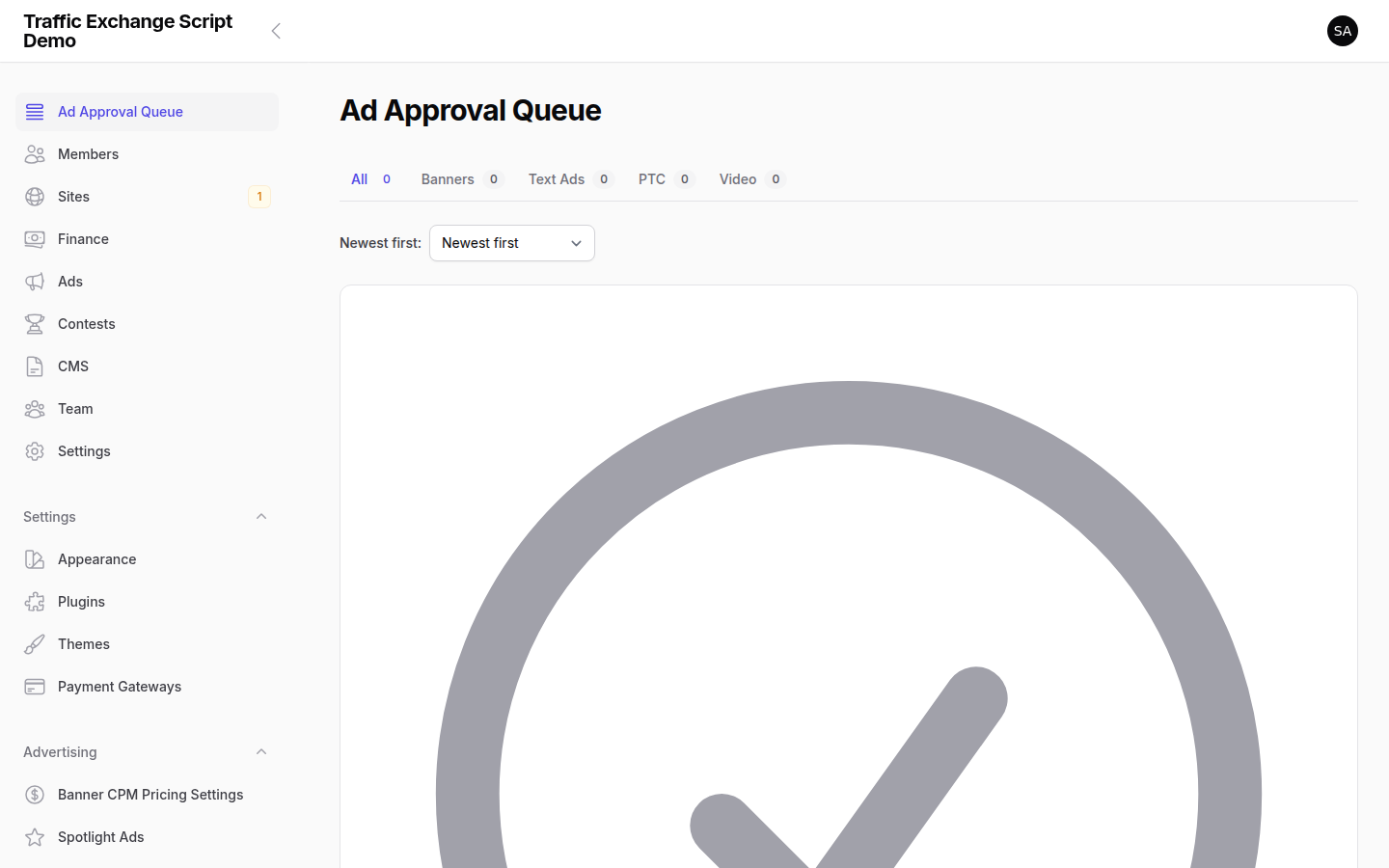
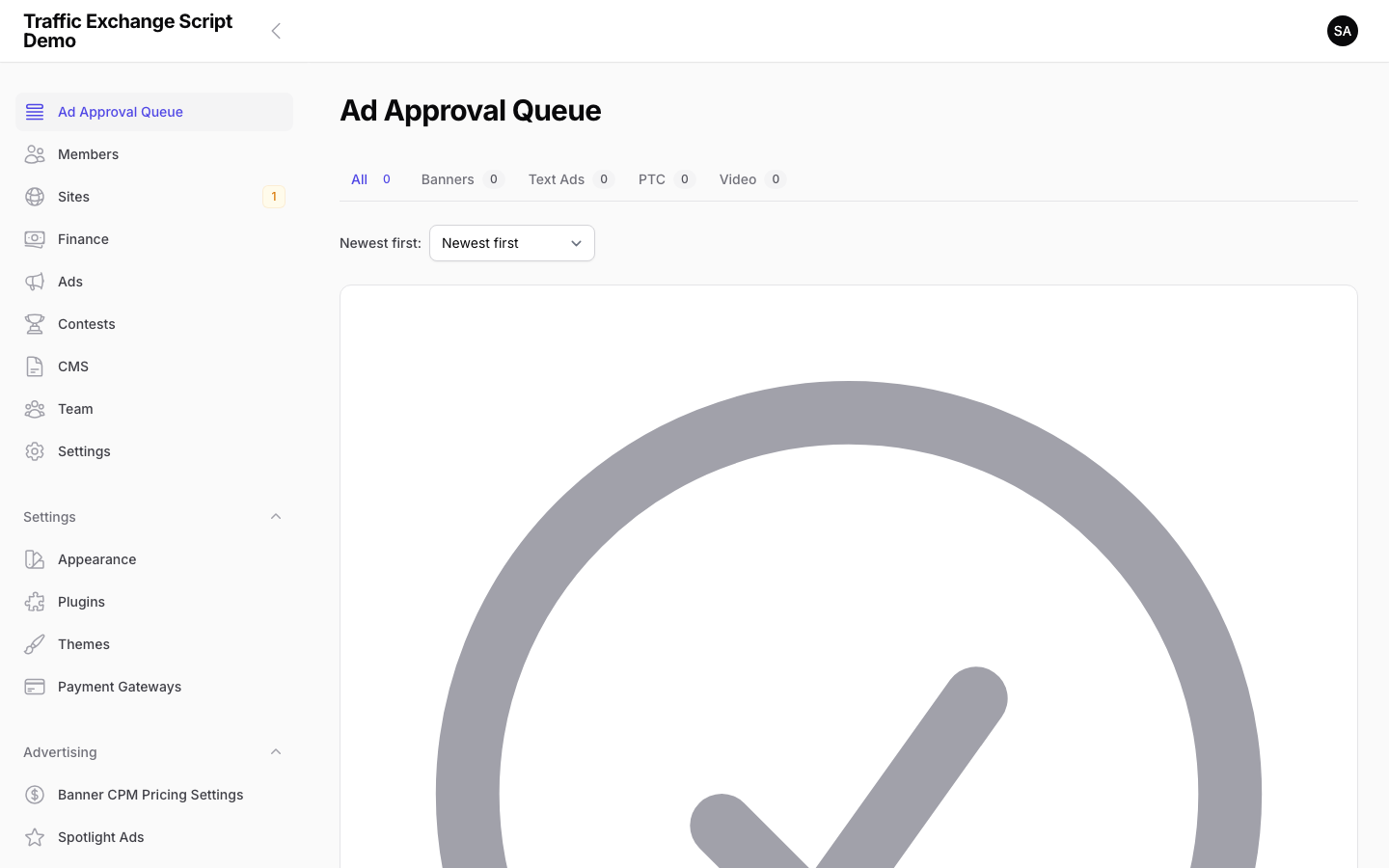
A: Visit trafficexchangescript.com for screenshots and a full feature overview of both the member-facing site and the admin panel. Check the product page for any currently available demo links.
If you have questions about a specific feature before installing, contact us at support@trafficexchangescript.com — we are happy to walk you through anything.
License Tiers & Upgrades
Q: Can I upgrade my license later?
A: Yes. If you purchased a Standard or Developer license and want to upgrade to a higher tier, contact support at support@trafficexchangescript.com with your order number and the tier you want to upgrade to. We will provide upgrade pricing and instructions.
Your existing installation continues to work during the upgrade process — there is no downtime.
Support & Updates
Q: What support do I get?
A: Support is included with every license and varies by tier:
| Tier | Support period | First response |
|---|---|---|
| Standard ($297) | 6 months | Within 48 hours |
| Developer ($497) | 12 months | Within 24 hours |
| Unlimited ($997) | Lifetime | Within 12 hours |
What support covers:
– Installation on shared hosting (cPanel) or VPS
– Configuration of .env settings and admin panel options
– Troubleshooting errors with the script
– License key delivery and activation issues
– Documentation clarification
Reach support: support@trafficexchangescript.com
Self-service docs: https://trafficexchangescript.com/docs/ — most common questions are answered there and usually faster than waiting for a reply.
Q: Is the script updated? How do I get updates?
A: Yes — the script receives updates. When an update is released, you will receive a notification email to the address on your purchase. You can also check your account at trafficexchangescript.com for the latest available version.
How to apply an update: Updates are distributed as a ZIP archive. The process is:
- Back up first — always export your database and save a copy of your
.envbefore touching any files. - Download the new version from your account.
- Upload and overwrite the script files — but do not overwrite your
.envfile. - Run any new migrations if the release notes mention them.
- Clear the cache so the site picks up the new code.
The full update procedure (including shared hosting and VPS instructions) is in the Updating guide.
For issues not listed here, check storage/logs/laravel.log first. Most errors are logged there with a specific message that makes diagnosis much faster. If you are still stuck, contact support at support@trafficexchangescript.com with the relevant log lines and a description of what you have already tried.
— The Traffic Exchange Script Team
Screenshots