Surf Engine FAQ
CAPTCHA and Anti-Cheat
Q: CAPTCHA is appearing on almost every surf view for some of my members. Why?
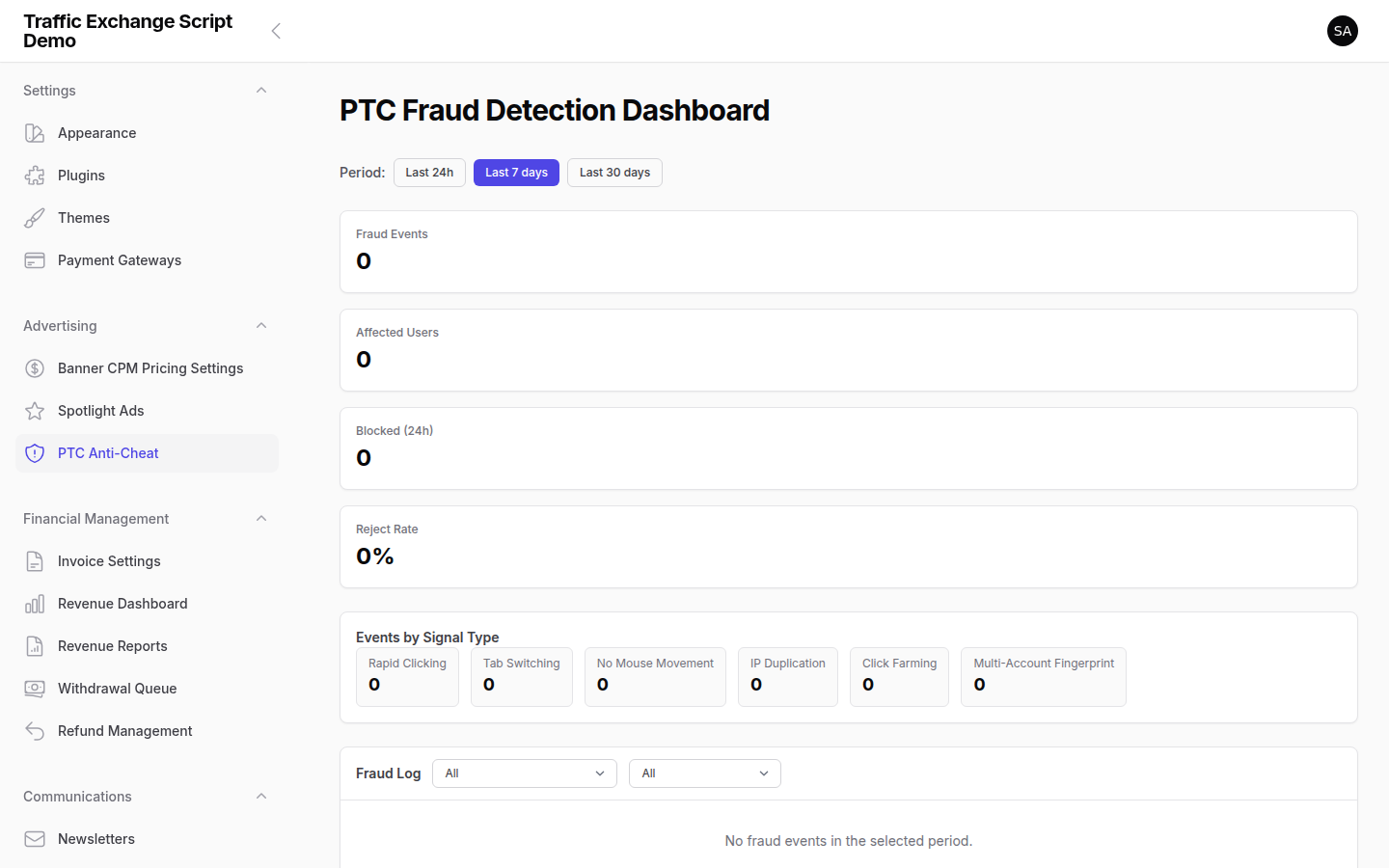
A: The script uses an adaptive CAPTCHA system that increases CAPTCHA frequency automatically when a member’s cheat score rises. At normal settings, CAPTCHA appears every 15 surf views (TE_CAPTCHA_FREQUENCY=15). But when the system detects suspicious activity, the frequency escalates:
| Member’s cheat score | CAPTCHA frequency |
|---|---|
| 0 – 2.99 (clean) | Every 15 views (normal) |
| 3 – 5.99 (low suspicion) | Every ~10 views (1.5× increase) |
| 6 – 8.99 (medium suspicion) | Every ~7–8 views (double frequency) |
| 9+ (high suspicion) | Every single view |
If a specific member is seeing CAPTCHA on every view, their cheat score is at 9 or above. This usually happens because: – They are using a VPN or proxy (score increases automatically) – They have very uniform click timing (automation detection) – They are surfing from a data center IP
To check and reset a member’s cheat score: 1. Go to Admin → Members and find the member. 2. Open their profile — look for the Cheat Score field. 3. If you believe the score was assigned in error, you can reset it from the member edit page.
To adjust CAPTCHA sensitivity site-wide:
– Increase TE_CAPTCHA_FREQUENCY in .env (e.g. 30) to show CAPTCHA less often at baseline.
– Set TE_CAPTCHA_ADAPTIVE_ENABLED=false to disable adaptive escalation (not recommended).
– Adjust cheat score thresholds in Admin → Settings → Anti-Cheat.
Q: Members are getting temporarily banned even though I believe they are legitimate surfers. What should I do?
A: The anti-cheat system bans based on accumulated cheat score. A temporary ban triggers at a score of 15, an extended ban (24 hours) at 25, and a permanent ban at 50. Cheat scores decay by 0.5 per day on their own.
Reasons a legitimate member might accumulate a high score: – VPN usage — many legitimate members use VPNs. The system currently adds score for VPN/proxy IPs. – Shared IP at work or home — if multiple family members or colleagues use the same IP, multi-account detection may flag them. – Mobile networks — some mobile carrier IPs are flagged as proxies.
To unban and reset a member: 1. Go to Admin → Members → find the member. 2. Click Edit and set their status back to Active. 3. Reset their cheat score to 0.
To reduce false positives site-wide:
– Go to Admin → Settings → Anti-Cheat.
– Change the Proxy Detection Action from warn to a softer response, or adjust the action for VPN IPs.
– Increase the Cheat Score Thresholds (e.g. raise temp ban from 15 to 25) if your member base frequently uses VPNs.
Q: What is the “Safe Surf Icon” CAPTCHA type?
A: The Safe Surf Icon CAPTCHA is a more demanding challenge that requires members to click a specific image from a set. The anti-cheat system switches to this harder type automatically when a member’s cheat score reaches 6 or above. You cannot manually assign this to individual members — it is applied automatically based on cheat score.
Site Health Checks and Auto-Pause
Q: Member-submitted sites are being paused automatically. What triggers this?
A: The script runs an automated health check on all active sites using the te:check-site-health artisan command (run on schedule). It sends an HTTP request to each site’s URL and checks for a valid response.
A site is automatically paused after 3 consecutive health check failures. A failure occurs when: – The URL returns an HTTP error (5xx, 4xx) – The URL times out (default: 10 seconds) – The URL redirects to a completely different domain (flagged for admin review)
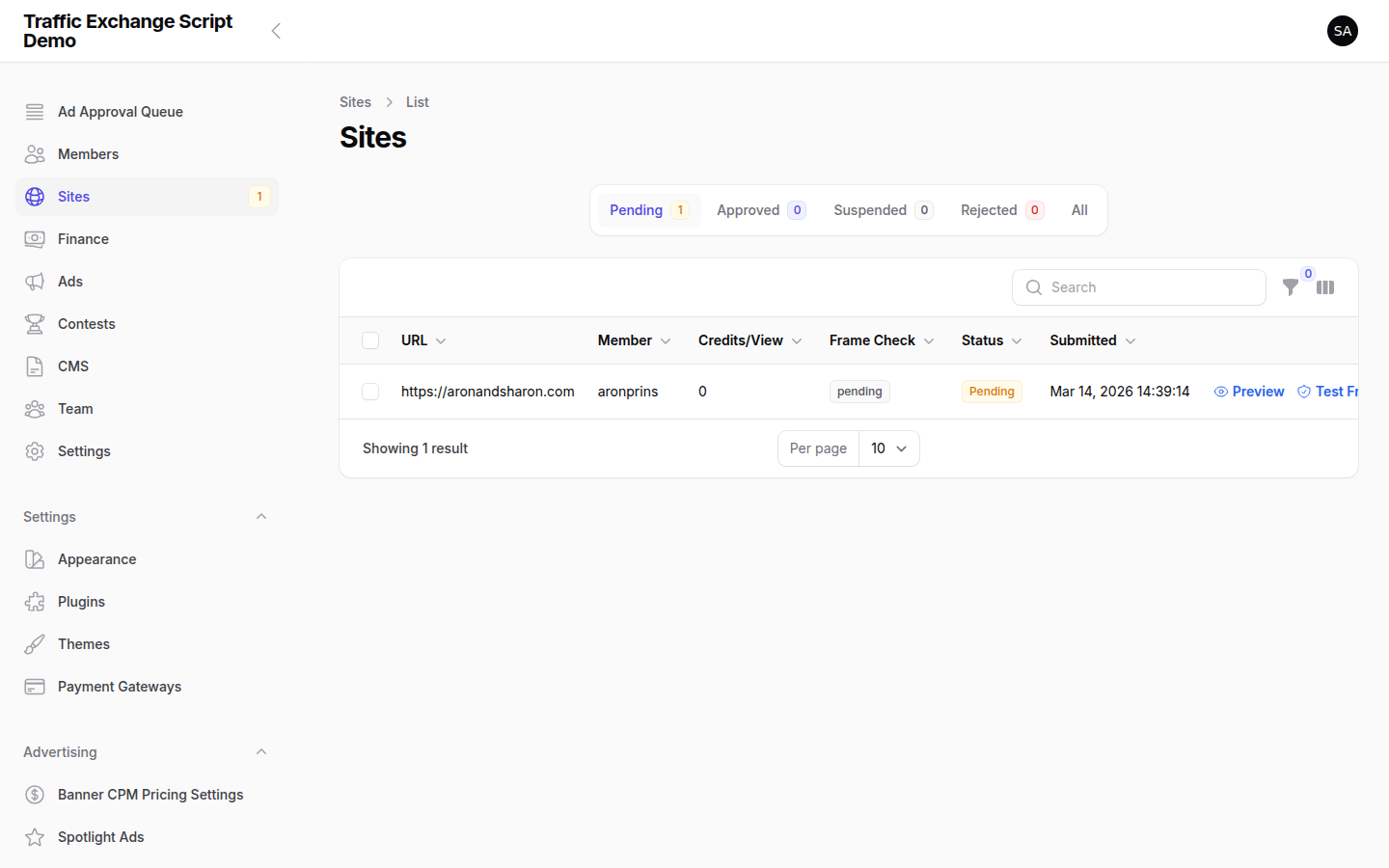
To see why a specific site was paused: 1. Go to Admin → Sites and find the paused site. 2. Check the Health Check Failures count and Last Health Check time on the site record. 3. Visit the site’s URL yourself to confirm it is down or returning an error.
To re-activate a paused site: 1. Confirm the site’s URL is accessible from a browser. 2. In Admin → Sites, find the site and change its status back to Active. 3. The health check failure counter will reset on the next successful check.
To adjust the auto-pause threshold:
– The number of failures before pausing is controlled by surf.health_check_max_failures in the script config (default: 3). Contact your Founding Engineer to adjust this if needed — it is not currently exposed as an .env variable.
Q: Sites are being flagged with “redirect domain change” — what does this mean?
A: When the health check detects that a site’s URL redirects to a completely different domain (not just a www/https redirect), it flags the site for admin review rather than automatically pausing it. This protects against situations where a domain expires and is re-registered by someone else, which would mean your members are surfing a different site than intended.
What to do: 1. Go to Admin → Sites and look for sites marked for review. 2. Visit the URL and confirm what it is redirecting to. 3. If the redirect is intentional (e.g. the member moved their site to a new domain), update the site URL and re-approve it. 4. If the redirect leads to an unrelated site, reject the site and notify the member.
Credit Awarding
Q: Members report that auto surf credits are not being awarded. What should I check?
A: Auto surf credits not being awarded is almost always caused by one of these issues:
1. The scheduler is not running.
All credit-related processing depends on the Laravel scheduler. If php artisan schedule:run is not running every minute via cron, credit jobs will queue up but not process.
To verify: check storage/logs/laravel.log — you should see regular entries from the scheduler every minute. If there are no recent entries, fix your cron setup. See the Scheduled Tasks guide for cron configuration.
2. The queue worker is not processing jobs (VPS only). On VPS mode, jobs (including credit awards) are processed by a queue worker, not inline. If the queue worker is stopped, credits will not be awarded.
To check: run php artisan queue:status via SSH. If the queue is backlogged, restart the worker:
php artisan queue:restart
Then verify via Supervisor that the worker stays running.
3. Session limits are being enforced. Auto surf has a daily session limit per member (configurable in Admin → Settings → Surf Engine). If a member has hit their daily auto surf limit, they will not earn additional credits until the limit resets (typically at midnight UTC). Check the member’s surf history in their profile.
4. Auto surf timer tolerance. The script has a timing tolerance window — if the browser sends the surf completion signal too quickly (indicating automation), the credit may be withheld. This is by design for members who manipulate auto surf timing. If legitimate members are affected, check their cheat score.
Q: Manual surf credits are being awarded correctly, but PTC (Paid-to-Click) credits are not. What is different?
A: PTC credits go through a separate processing path. The most common causes of missing PTC credits:
- The PTC ad’s credit budget is exhausted. Go to Admin → PTC Ads and check if the ad still has remaining credits.
- The member already clicked this PTC ad. The script prevents double-clicking the same ad.
- The member’s account was flagged by anti-cheat. Members with high cheat scores may have PTC credits withheld.
Check the member’s transaction history for any credit entries — if PTC credits are appearing but at 0, the ad budget may be empty.
Connectivity and Browser Issues
Q: Members report they cannot load the surf frame — the page just shows a blank area or an error.
A: This is almost always caused by one of three things:
1. The submitted site has an X-Frame-Options header.
Many websites set X-Frame-Options: SAMEORIGIN or X-Frame-Options: DENY to prevent their pages from being embedded in iframes. Sites with these headers will appear blank in the surf frame. The script’s health check does not catch this — it only checks that the URL is reachable.
What to do: Go to Admin → Sites and pause or reject the site. Advise the member who submitted it that their site needs to allow iframe embedding.
2. The member’s browser is blocking the frame. Some browsers block cross-origin iframes in certain security modes. This is more common in Safari and Firefox with strict privacy settings. Advise the member to try a different browser (Chrome or Edge recommended) and to check if any privacy extensions are blocking frames.
3. The site is loading over HTTP in an HTTPS surf session. If your traffic exchange runs over HTTPS but a submitted site uses HTTP, browsers will block the insecure frame (mixed content). The submitted site must use HTTPS to be displayable in a secure surf session.
What to do: In Admin → Sites, reject sites without HTTPS, or set a policy requiring HTTPS-only submissions.


Screenshots