Payment Gateway FAQ
Webhooks
Q: Members complete PayPal purchases but their accounts are not upgraded. Webhooks are not registering. What should I check?
A: When a PayPal payment is completed, PayPal sends an IPN/webhook notification to your site. If that notification is not reaching your site, accounts will not upgrade automatically. Work through this checklist:
1. Confirm your webhook URL is correctly set in PayPal. The webhook endpoint for PayPal is:
https://yourdomain.com/webhook/payment/paypal
In your PayPal developer dashboard (or PayPal account settings), ensure this URL is registered as the IPN or webhook endpoint. The URL must use HTTPS — PayPal will not send to plain HTTP endpoints.
2. Confirm your site is publicly accessible. PayPal’s servers must be able to reach your site. If your site is behind Cloudflare, ensure it is not in “I’m Under Attack” mode or behind a firewall rule that blocks external POST requests.
3. Check PAYPAL_WEBHOOK_ID in .env.
If you are using PayPal REST webhooks (recommended), you must copy the Webhook ID from the PayPal developer portal into your .env:
PAYPAL_WEBHOOK_ID=your-webhook-id
Without this, webhook signature verification will fail and all webhook events will be rejected.
4. Confirm APP_URL matches your live domain.
PayPal validates the webhook URL against your configured APP_URL. If these differ, webhook verification may fail.
5. Check the Laravel log.
All webhook events — received or rejected — are logged in storage/logs/laravel.log. Look for entries containing webhook to see what is happening.
Q: PayPal sandbox purchases are not registering during my testing. What is wrong?
A: The most common cause is the sandbox mode flag not being set correctly. Check your .env:
PAYPAL_SANDBOX=true
If this is set to false, your site will try to process against live PayPal even when you are using sandbox credentials — those calls will fail silently.
Also confirm:
– You are using PayPal Sandbox credentials (PAYPAL_CLIENT_ID and PAYPAL_CLIENT_SECRET from the PayPal Sandbox developer console), not your live credentials.
– Your sandbox webhook in the PayPal developer portal points to https://yourdomain.com/webhook/payment/paypal.
– Your site is accessible over HTTPS — PayPal Sandbox also requires HTTPS for webhooks.
When you are ready to go live, set PAYPAL_SANDBOX=false and replace the sandbox credentials with your live PayPal credentials.
Q: Stripe webhooks are not registering. How do I set up Stripe correctly?
A: Stripe requires a webhook signing secret to verify that webhook events are genuinely from Stripe. Without it, your site will reject all Stripe webhook events.
Step 1 — Create a Stripe webhook endpoint. In your Stripe dashboard → Developers → Webhooks, click Add endpoint and enter:
https://yourdomain.com/webhook/payment/stripe
Select the events to listen for — at minimum: checkout.session.completed, invoice.payment_succeeded, invoice.payment_failed.
Step 2 — Copy the webhook signing secret.
After creating the endpoint, Stripe shows a Signing secret (starts with whsec_). Copy this into your .env:
STRIPE_WEBHOOK_SECRET=whsec_your-signing-secret
Step 3 — Confirm your Stripe keys.
STRIPE_KEY=pk_live_...        # Publishable key
STRIPE_SECRET=sk_live_...     # Secret key
Do not mix live and test keys. If you set STRIPE_KEY to a test key, use STRIPE_WEBHOOK_SECRET from the test dashboard.
Q: Members report that no payment options are showing on the upgrade/purchase page. What is happening?
A: Payment options only appear when at least one gateway is enabled and configured in both .env and the admin panel.
Check 1 — Gateway credentials are in .env.
Each gateway requires specific keys. Example for PayPal:
PAYPAL_CLIENT_ID=your-client-id
PAYPAL_CLIENT_SECRET=your-client-secret
PAYPAL_SANDBOX=false
PAYPAL_WEBHOOK_ID=your-webhook-id
If any required field is empty, that gateway will not load.
Check 2 — Gateway is enabled in the admin panel.
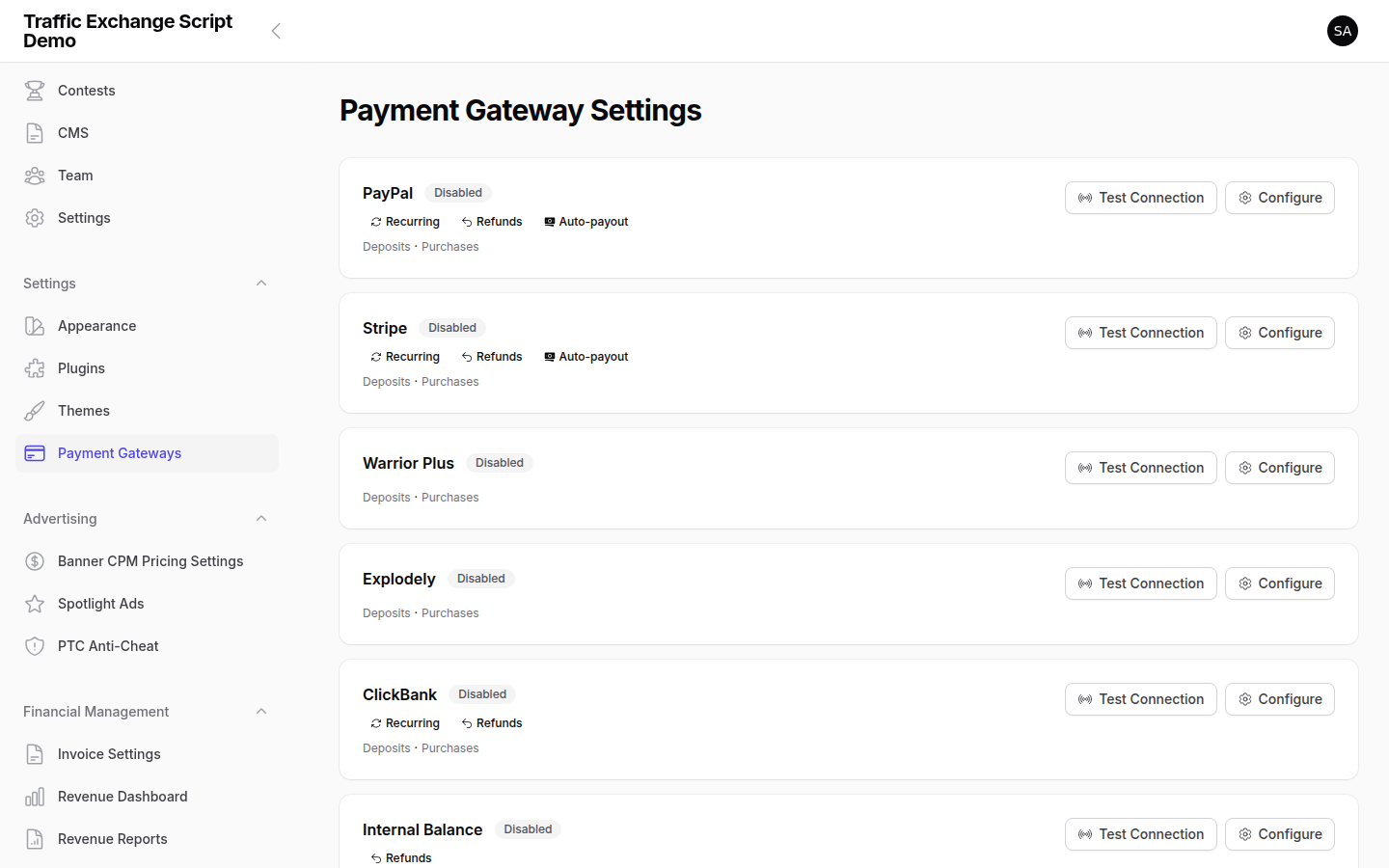
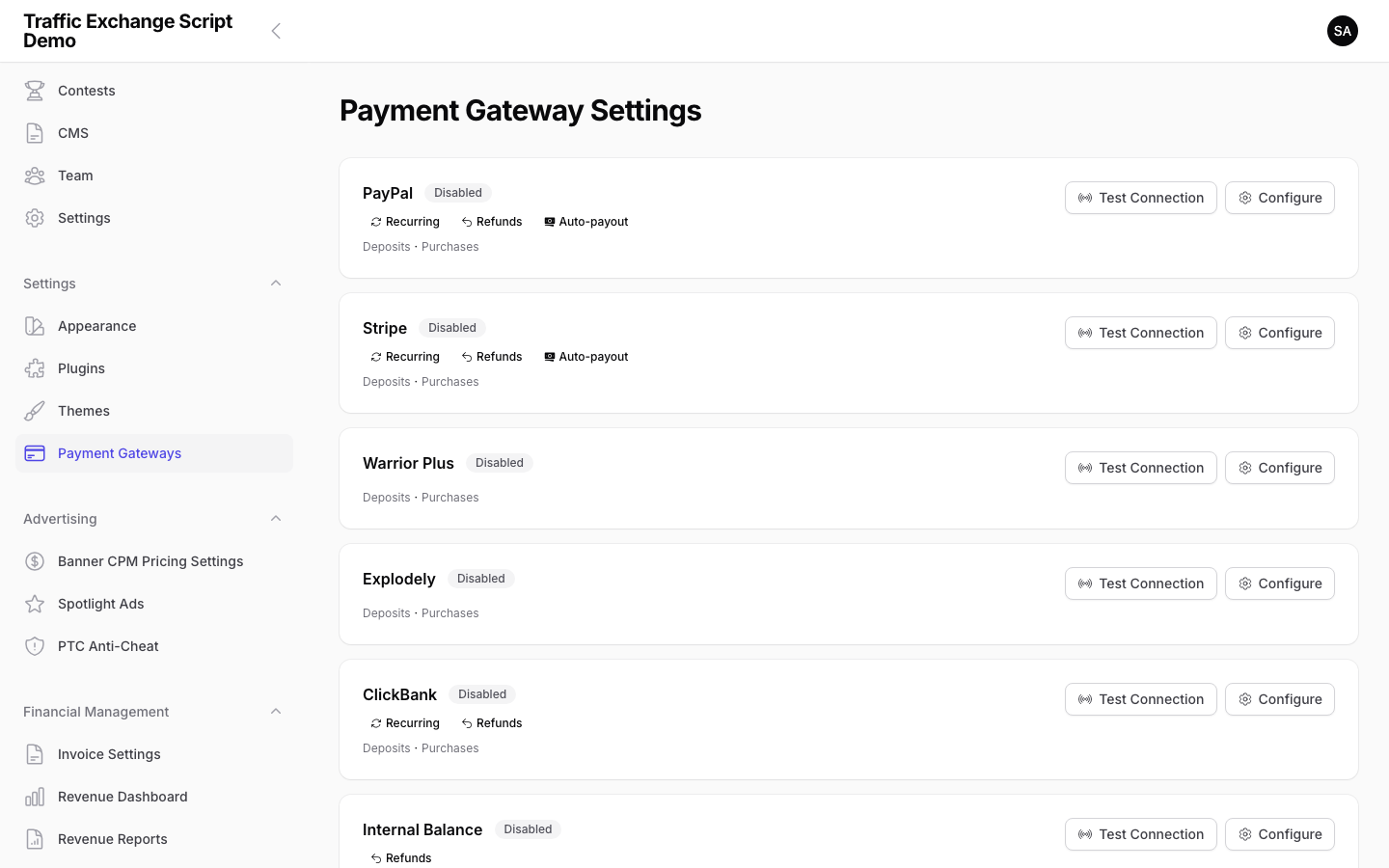
Go to Admin → Settings → Payment Gateways. Even if credentials are set in .env, the gateway must be toggled on in the admin panel for it to appear to members.
Check 3 — The membership level has a price set. Free membership levels do not show payment options (there is nothing to pay). Confirm the membership level the member is trying to upgrade to has a non-zero price configured.
Check 4 — Clear the config cache.
If you recently updated .env, clear the cache so the new values are picked up:
php artisan config:clear
php artisan cache:clear
Gateway-Specific Questions
Q: I am using JVZoo or WarriorPlus to sell licenses. Why are member accounts not being upgraded after purchase?
A: JVZoo and WarriorPlus deliver purchases via an IPN postback, not a real-time webhook in the same sense as PayPal/Stripe. The postback URL you must provide in the JVZoo or WarriorPlus product settings is:
https://yourdomain.com/webhook/payment/jvzoo
https://yourdomain.com/webhook/payment/warriorplus
Also confirm:
– JVZOO_SECRET_KEY or WARRIORPLUS_SECRET_KEY is set correctly in .env — this is used to verify the postback signature.
– Your product in JVZoo/WarriorPlus is linked to the correct membership level in Admin → Settings → Payment Gateways.
Q: A member paid but their account was not upgraded. How do I manually credit them?
A: If a webhook was missed (for example, your server was down during a payment), you can manually upgrade the member:
- Go to Admin → Members and find the member’s account.
- Click Edit and change their membership level to the appropriate tier.
- Set the subscription expiry date if applicable.
- Optionally add a note to the member’s transaction history for your records.
To prevent this from happening again, check that your webhook endpoint is reachable (see questions above) and that your server has no downtime during business hours.
Q: What is the “Internal Balance” gateway?
A: Internal Balance is a built-in wallet system. Members can fund their internal balance (using another gateway) and then use that balance to purchase upgrades, buy ad credits, or tip other members — without leaving the site.
To enable it:
– Go to Admin → Settings → Payment Gateways and enable Internal Balance.
– Set a minimum balance requirement in INTERNAL_BALANCE_MIN_BALANCE in .env if needed (default: 0.00).
Members can deposit funds into their internal balance using any other enabled gateway (PayPal, Stripe, etc.).
For payment issues not listed here, always check storage/logs/laravel.log — every webhook received (and rejected) is logged there. Include the relevant log lines when contacting support.
Screenshots